I had to try a bit of game making. End result is not much but I think its still something. Sometimes its nice to do something different.
Either way this is the game that I tried to make. Try it out if you like it.

Miscellaneous – other content that site is not based upon.
I had to try a bit of game making. End result is not much but I think its still something. Sometimes its nice to do something different.
Either way this is the game that I tried to make. Try it out if you like it.

So if you are using PMPC you do know its really good product by now. But what if you don’t have servers anymore to publish your products?
Patch My PC addressed this problem by developing online portal (https://portal.patchmypc.com/). Its not at all perfect at the moment. Its still being developed. But this is still a quick browse through:

This is the basic example of what it looks like.
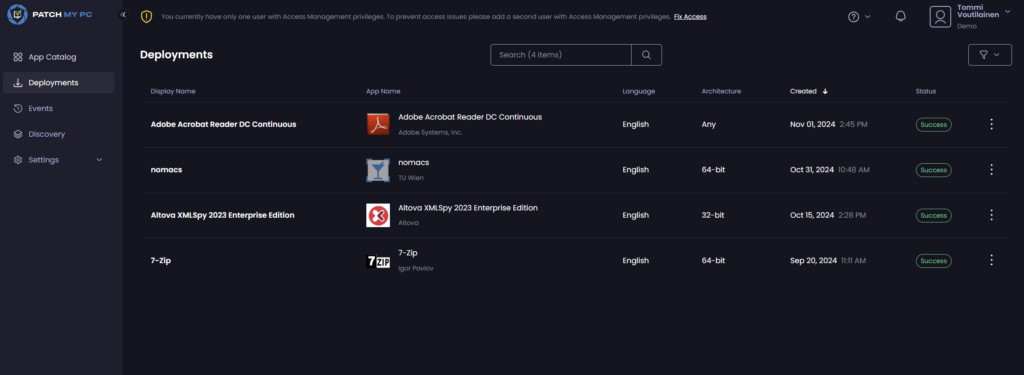
Deployments can be made using the portal as well as updates and uninstalls.
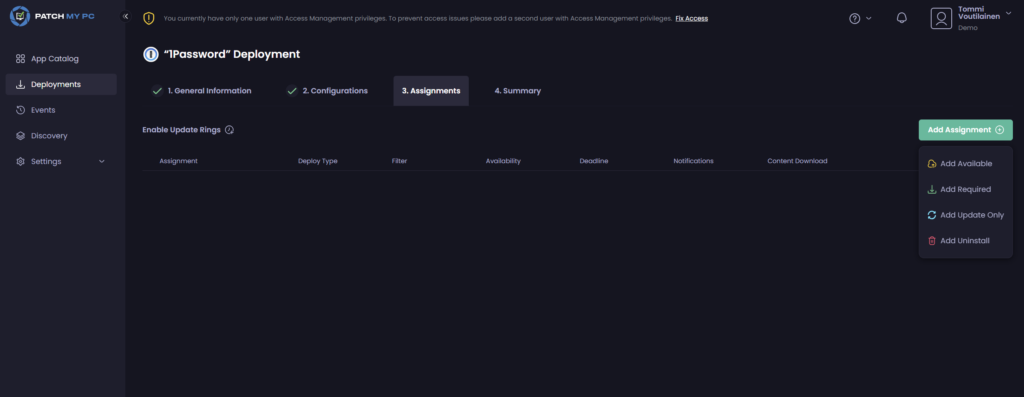
This is really simple and well thought out. More features are incoming but I’d venture a guess that this will be the use case in the future.
If you are interested in more detailed please use the official site: Patch My PC Cloud | Getting Started
The above has also guides on how to onboard to your cloud with patch my pc portal. There is no point of me taking the steps once again, as PMPC does documentation better than I do. My main goal was just to basically promote this as the current users of PMPC doesn’t even know they currently has the option to use this even. So it doesn’t hurt to acknowledge there is other ways to use PMPC product as well.

Lets be clear. There are easier ways of doing this but I am not looking for a cut corners solution. I have made a multi app based kiosk with powershell scripts as Windows 11 and multi app kiosks are not really thought through.
Win11 leaves too much wiggle room for kioskuser so I make the assigned access by hand. And oh boy what problems does this make…
So in short I make a kiosk that has basics in place. Lets say browsers, Nomacs – Image Lounge, shutdown and explorer.
Setup is quite basic. So last month Microsoft did something to Windows 11 and when running this idea of kiosks then you’ll lose ability to see desktop after 2024-10-cumulative update. Have not seen why this is but… It is what it is.
So now you have to make your own task bar icons so you have start menu and task bar to allow your kioskuser to fuction well. I would rather had desktop but M$ doesn’t agree.
So now we have a bases setup for you if you’d choose this way. There is much uncertainty based on this so I wouldn’t recommend this unless you wanted more security.
Create an Assigned Access configuration file | Microsoft Learn
So my idea is to use xml and have kioskuser0 be added to guest group. This will strict down access quite a bit and user will only allowed to use locally installed application – no UWP apps available.
So all needs to be setup in xml that then is imported to powershell and I use app install to use it in Intune. Powershell has scheduled tasks so there will be nothing left after the session is booted. All downloads will be removed, on log in and shutdown.
# Specify the username of the user you want to add to the Guests group
$username = "KioskUser0"

# Check if the user exists
$user = Get-LocalUser -Name $username -ErrorAction SilentlyContinue
if ($user) {
    # Check if the Guests group exists
    if (Get-LocalGroup -SID "S-1-5-32-546" -ErrorAction SilentlyContinue) {
        Add-LocalGroupMember -SID "S-1-5-32-546" -Member $username
        Write-Host "User '$username' successfully added to the 'Guests' group."
        Write-Host "Password for '$username' set to never expire."
    } else {
        Write-Host "Error: The 'Guests' group does not exist."
    }
} else {
    Write-Host "Error: User '$username' does not exist."
}
# Set password to never expire
$user | Set-LocalUser -PasswordNeverExpires $true
So for me this is a key feature on this. You really do need to do this when using Win11. Well this i my opinion of course.
I don’t want to bore you with massive texts so lets put the key piece in here to emphasize what assigned was in this example:
<AllowedApps>
<App AppUserModelId="windows.immersivecontrolpanel_cw5n1h2txyewy!microsoft.windows.immersivecontrolpanel" />
<App AppUserModelId="Microsoft.WindowsNotepad_8wekyb3d8bbwe!App" />
<App AppUserModelId="Microsoft.Windows.Explorer!App" />
<App DesktopAppPath="%windir%\explorer.exe" />
<App DesktopAppPath="%ProgramFiles(x86)%\Microsoft\Edge\Application\msedge.exe" />
<App DesktopAppPath="%Programfiles%\Adobe\Acrobat DC\Acrobat\Acrobat.exe" />
<App DesktopAppPath="%Programfiles%\Google\Chrome\Application\chrome.exe" />
<App DesktopAppPath="%windir%\system32\shutdown.exe" />
<App DesktopAppPath="%windir%\system32\Notepad.exe" />
<App DesktopAppPath="%Programfiles%\nomacs - Image Lounge\bin\nomacs.exe" />
</AllowedApps>
</AllAppsList>
<v2:FileExplorerNamespaceRestrictions>
<v2:AllowedNamespace Name="Downloads"/>
<v3:AllowRemovableDrives/>
</v2:FileExplorerNamespaceRestrictions>
<win11:StartPins>
<![CDATA[{
"pinnedList":[
{"desktopAppLink": "%ALLUSERSPROFILE%\\Microsoft\\Windows\\Start Menu\\Programs\\Kiosk\\Notepad.lnk"},
{"desktopAppLink": "%ALLUSERSPROFILE%\\Microsoft\\Windows\\Start Menu\\Programs\\nomacs - Image Lounge.lnk"},
{"desktopAppLink": "%ALLUSERSPROFILE%\\Microsoft\\Windows\\Start Menu\\Programs\\Adobe Acrobat.lnk"},
{"desktopAppLink": "%ALLUSERSPROFILE%\\Microsoft\\Windows\\Start Menu\\Programs\\Microsoft Edge.lnk"},
{"desktopAppLink": "%ALLUSERSPROFILE%\\Microsoft\\Windows\\Start Menu\\Programs\\Firefox.lnk"},
{"desktopAppLink": "%ALLUSERSPROFILE%\\Microsoft\\Windows\\Start Menu\\Programs\\Google Chrome.lnk"}
{"desktopAppLink": "%ALLUSERSPROFILE%\\Microsoft\\Windows\\Start Menu\\Programs\\Kiosk\\sulje istunto.lnk"}
{"desktopAppLink": "%ALLUSERSPROFILE%\\Microsoft\\Windows\\Start Menu\\Programs\\Kiosk\\File Explorer.lnk"}
]
}]]>
</win11:StartPins>
<Taskbar ShowTaskbar="true"/>
<win11:TaskbarLayout>
<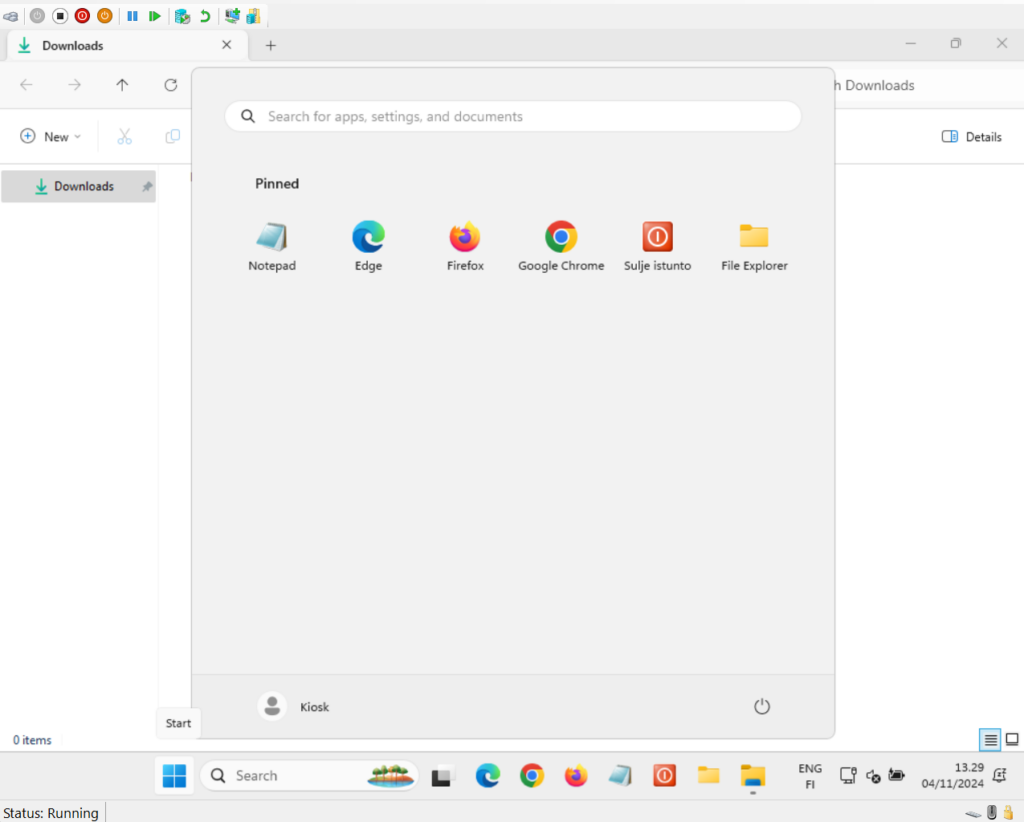
There will be the option to use removeable drives but with VM being the test subject there is none available. It works tho.
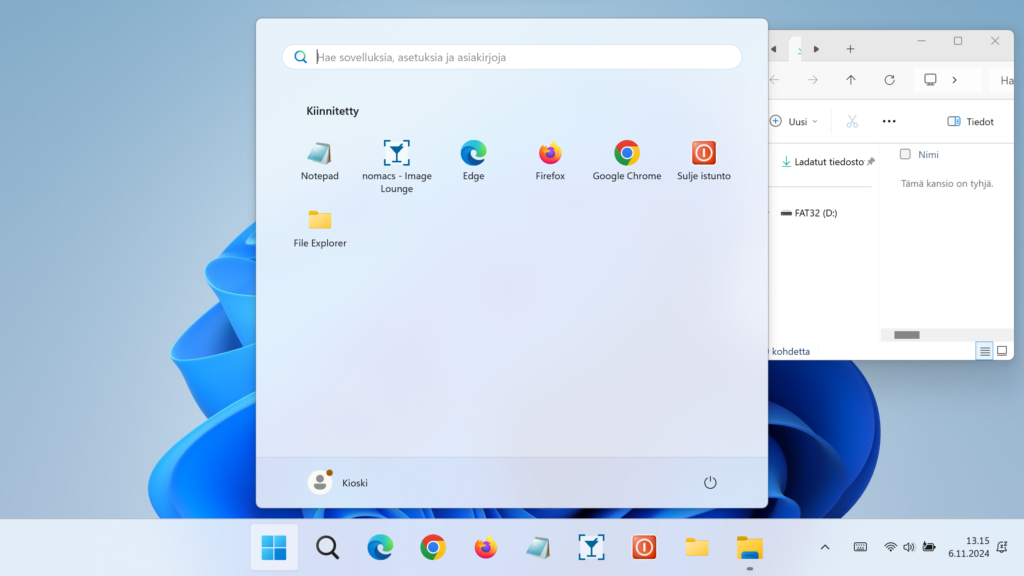
Updated: This is an example of a real computer screen. Finnish OS that has been built with Windows 11 kiosk with limited access to only Downloads and removable drives. All the icons that should be in users desktop are gone. There are all icons in available in the public desktop, but kioskuser0 will not see these after last CU update and running the autopilot after these updates.

Update 11.11.2024: – https://learn.microsoft.com/en-us/microsoftteams/teams-client-uninstall-script
M$ finally launched official script 8.11.2024. So there is your OFFICIAL way of doing this. Use the above.
I bet when you have been googling, you haven’t found anything worthy results that actually makes the security portals hide the classic teams. Well I made a script that is bad, I mean its bad as it really should have been Microsoft all along to fix this and not IT admins.
So this can be done with application based “install” or remediation based script.
Detection method:
# Microsoft Teams Classic Uninstall Detection
$goRemediate = $false
$UserProfiles = Get-ChildItem "C:\Users" -Directory
$TeamsClassicFound = $false

foreach ($profile in $UserProfiles) {
    $TeamsClassicPath = "$($profile.FullName)\AppData\Local\Microsoft\Teams\current\Teams.exe"
    if (Test-Path $TeamsClassicPath) {
        #write-host "Teams Classic found in user profile located in $($profile.FullName), setting remediation needs to $true"
        $TeamsClassicFound = $true
        break
    }
}

if (!$TeamsClassicFound) {
    #write-host "No Teams Classic found." -ForegroundColor Green
} else {
   # write-host "Teams Classic was found, needs to be remediated."
    $goRemediate = $true
}

$registryPath = @(
    "HKLM:\SOFTWARE\Wow6432Node\Microsoft\Windows\CurrentVersion\Uninstall\*",
    "HKLM:\SOFTWARE\Microsoft\Windows\CurrentVersion\Uninstall\*"
)
$MachineWide = Get-ItemProperty -Path $registryPath | Where-Object -Property DisplayName -eq "Teams Machine-Wide Installer"
$classic = Get-WmiObject -Query "SELECT * FROM Win32_Product WHERE Name = 'Microsoft Teams classic'"
$hkuKeys = Get-ChildItem -Path "Registry::HKEY_USERS"

foreach ($userKey in $hkuKeys) {
    $teamsKeyPath = "Registry::HKEY_USERS\$($userKey.PSChildName)\SOFTWARE\Microsoft\Windows\CurrentVersion\Uninstall\Teams"
    if (Test-Path $teamsKeyPath) {
       # write-host "User registry still lurking, setting remediation needs to $true"
        $goRemediate = $true
    }
}

if ($MachineWide) {
    #write-host "Still lurking: Teams Machine-Wide Installer, setting remediation needs to $true"
    $goRemediate = $true
}

if ($classic) {
    #write-host "Still lurking: Microsoft Teams Classic Installer, setting remediation needs to $true"
    $goRemediate = $true
}

# Finding SIDs for loop
$PatternSID = 'S-1-5-\d+-\d+-\d+\-\d+\-\d+$'

# Get Username, SID, and location of ntuser.dat for all users
$ProfileList = gp 'HKLM:\SOFTWARE\Microsoft\Windows NT\CurrentVersion\ProfileList\*' | Where-Object {$_.PSChildName -match $PatternSID} |
    Select  @{name="SID";expression={$_.PSChildName}},
            @{name="UserHive";expression={"$($_.ProfileImagePath)\ntuser.dat"}},
            @{name="Username";expression={$_.ProfileImagePath -replace '^(.*[\\\/])', ''}}

# Get all user SIDs found in HKEY_USERS (ntuder.dat files that are loaded)
$LoadedHives = gci Registry::HKEY_USERS | ? {$_.PSChildname -match $PatternSID} | Select @{name="SID";expression={$_.PSChildName}}

# Get all users that are not currently logged
$UnloadedHives = Compare-Object $ProfileList.SID $LoadedHives.SID | Select @{name="SID";expression={$_.InputObject}}, UserHive, Username

# Loop through each profile on the machine
Foreach ($item in $ProfileList) {
    IF ($item.SID -in $UnloadedHives.SID) {
        reg load HKU\$($Item.SID) $($Item.UserHive) | Out-Null
    }

    # Check and potentially remove outdated Teams versions
    $teamsUninstallKeys = Get-ItemProperty registry::HKEY_USERS\$($item.SID)\Software\Microsoft\Windows\CurrentVersion\Uninstall\Teams*

    if ($teamsUninstallKeys) {
        foreach ($teamsKey in $teamsUninstallKeys) {
                #write-host "Teams found in user profile: $($item.Username) with version $displayVersion"
                $goRemediate = $true
            }
        }
    }

    IF ($item.SID -in $UnloadedHives.SID) {
        [gc]::Collect()
        reg unload HKU\$($item.SID) | Out-Null
    }


if (!$goRemediate) {
    write-output "Installed."
}
So as you might wonder. This is reverse logic. If not found then Installed. This app is only to remove and use “INSTALL” as the logic of which is build:
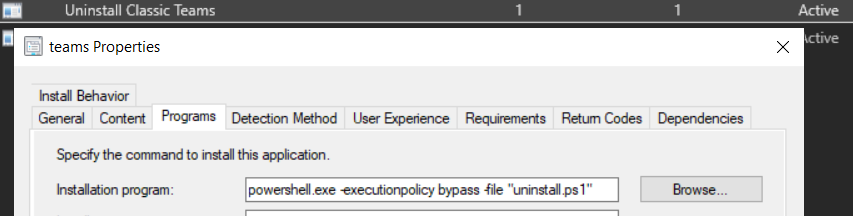
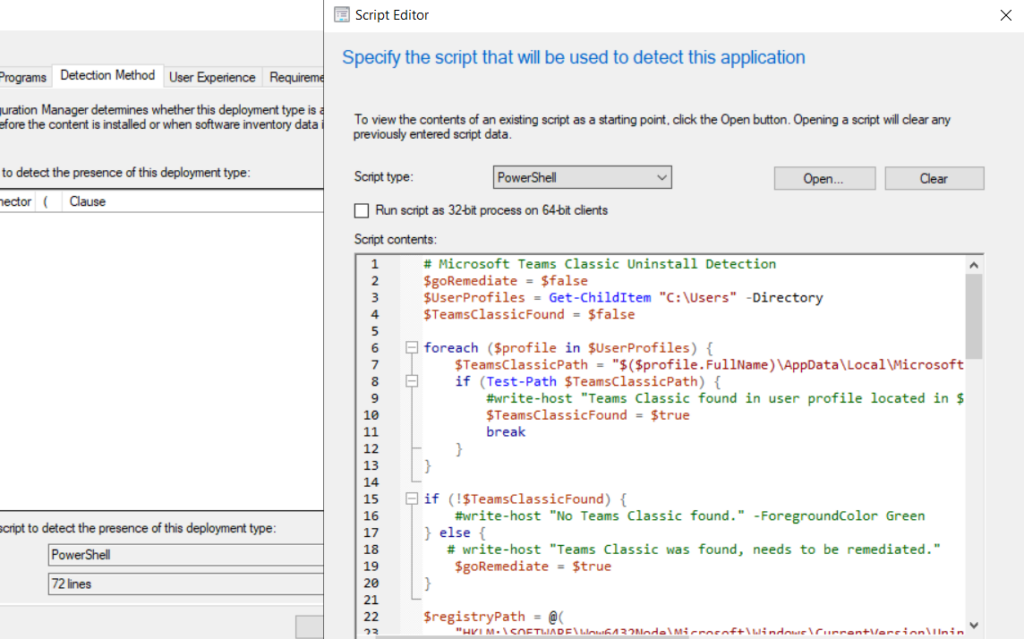
So there you have the detection method and why its done weirdly.
#"C:\ProgramData\Microsoft\IntuneManagementExtension\Logs"
#"C:\Windows\CCM\Logs\TeamsUninstaller.log"
$logFilePath = "C:\ProgramData\Microsoft\IntuneManagementExtension\Logs"

function Log-Message {
    param (
        [string]$Message
    )
    $timestamp = Get-Date -Format "yyyy-MM-dd HH:mm:ss"
    Add-Content -Path $logFilePath -Value "$timestamp - $Message"
}

$UserProfiles = Get-ChildItem "C:\Users" -Directory
$TeamsClassicFound = $false

foreach ($profile in $UserProfiles) {
    $TeamsClassicPath = "$($profile.FullName)\AppData\Local\Microsoft\Teams\current\Teams.exe"
    if (Test-Path $TeamsClassicPath) {
        Log-Message "Teams Classic found in user profile located in $($profile.FullName)"
    }
}

if (!$TeamsClassicFound) {
    Log-Message "No Teams Classic found."
}

$registryPath = @(
    "HKLM:\SOFTWARE\Wow6432Node\Microsoft\Windows\CurrentVersion\Uninstall\*",
    "HKLM:\SOFTWARE\Microsoft\Windows\CurrentVersion\Uninstall\*"
)
$MachineWide = Get-ItemProperty -Path $registryPath | Where-Object -Property DisplayName -eq "Teams Machine-Wide Installer"
Log-Message "$($MachineWide.DisplayName) Was found in the installed applications."

$hkuKeys = Get-ChildItem -Path "Registry::HKEY_USERS"
foreach ($userKey in $hkuKeys) {
    $teamsKeyPath = "Registry::HKEY_USERS\$($userKey.PSChildName)\SOFTWARE\Microsoft\Windows\CurrentVersion\Uninstall\Teams"
    if (Test-Path $teamsKeyPath) {
        Log-Message "User registry still lurking, setting remediation needs to true"
    }
}

function Uninstall-TeamsClassic($TeamsPath) {
    try {
        $process = Start-Process -FilePath "$TeamsPath\Update.exe" -ArgumentList "--uninstall /s" -PassThru -Wait -ErrorAction Stop
        if ($process.ExitCode -ne 0) {
            Log-Message "Uninstallation failed with exit code $($process.ExitCode)."
        }
    }
    catch {
        Log-Message "Uninstallation failed: $($_.Exception.Message)"
    }
}

$AllUsers = Get-ChildItem -Path "$($ENV:SystemDrive)\Users"

foreach ($User in $AllUsers) {
    Log-Message "Processing user: $($User.Name)"

    $localAppData = "$($ENV:SystemDrive)\Users\$($User.Name)\AppData\Local\Microsoft\Teams"
    $programData = "$($env:ProgramData)\$($User.Name)\Microsoft\Teams"

    if (Test-Path "$localAppData\Current\Teams.exe") {
        Log-Message "Uninstall Teams for user $($User.Name)"
        Uninstall-TeamsClassic -TeamsPath $localAppData
    } elseif (Test-Path "$programData\Current\Teams.exe") {
        Log-Message "Uninstall Teams for user $($User.Name)"
        Uninstall-TeamsClassic -TeamsPath $programData
    } else {
        Log-Message "Teams installation not found for user $($User.Name)"
    }
}

$TeamsIcon_old = "$($ENV:SystemDrive)\Users\*\AppData\Roaming\Microsoft\Windows\Start Menu\Programs\Microsoft Teams*.lnk"
Get-Item $TeamsIcon_old | Remove-Item -Force -Recurse

$registryPath = @(
    "HKLM:\SOFTWARE\Wow6432Node\Microsoft\Windows\CurrentVersion\Uninstall\*",
    "HKLM:\SOFTWARE\Microsoft\Windows\CurrentVersion\Uninstall\*"
)

$MachineWide = Get-ItemProperty -Path $registryPath | Where-Object -Property DisplayName -eq "Teams Machine-Wide Installer"

if ($MachineWide) {
    $registryKeyPath = $MachineWide.PSPath
    $cleanRegistryPath = $registryKeyPath -replace "Microsoft.PowerShell.Core\\Registry::", "Registry::"
    Remove-Item -Path $cleanRegistryPath -Recurse -Force
} else {
     Log-Message "Teams Machine-Wide Installer not found in the registry."
}

$PatternSID = 'S-1-5-\d+-\d+-\d+\-\d+\-\d+$'
$ProfileList = Get-ItemProperty 'HKLM:\SOFTWARE\Microsoft\Windows NT\CurrentVersion\ProfileList\*' | Where-Object {$_.PSChildName -match $PatternSID} |
    Select  @{name="SID";expression={$_.PSChildName}},
            @{name="UserHive";expression={"$($_.ProfileImagePath)\ntuser.dat"}},
            @{name="Username";expression={$_.ProfileImagePath -replace '^(.*[\\\/])', ''}}

$LoadedHives = Get-ChildItem Registry::HKEY_USERS | Where-Object {$_.PSChildname -match $PatternSID} | Select @{name="SID";expression={$_.PSChildName}}
$UnloadedHives = Compare-Object $ProfileList.SID $LoadedHives.SID | Select @{name="SID";expression={$_.InputObject}}, UserHive, Username

function Load-Hive {
    param (
        [string]$SID,
        [string]$HivePath
    )

    $maxRetries = 2
    $retryDelay = 2  # seconds

    for ($attempt = 1; $attempt -le $maxRetries; $attempt++) {
        try {
            # Attempt to load the hive
            reg load HKU\$SID $HivePath | Out-Null
            Log-Message "Successfully loaded hive for SID $SID"
            return $true
        } catch {
            Log-Message "Failed to load hive for SID $SID on attempt: $(${_}.Exception.Message)"

            if ($attempt -lt $maxRetries) {
                Log-Message "Retrying in $retryDelay seconds..."
                Start-Sleep -Seconds $retryDelay
            } else {
                Log-Message "Maximum retries reached for loading hive $SID. Skipping this profile."
                return $false
            }
        }
    }
}

foreach ($item in $ProfileList) {
    Log-Message "Checking $($item.Username)"

    if ($item.SID -in $UnloadedHives.SID) {
        Log-Message "Hive not loaded for $($item.Username). Attempting to load hive."
        $hiveLoaded = Load-Hive -SID $item.SID -HivePath $item.UserHive

        if (-not $hiveLoaded) {
            Log-Message "Skipping user $($item.Username) due to failed hive load."
            continue
        }
    }

    $teamsUninstallKeys = Get-ItemProperty registry::HKEY_USERS\$($item.SID)\Software\Microsoft\Windows\CurrentVersion\Uninstall\Teams*
    if ($teamsUninstallKeys) {
        foreach ($teamsKey in $teamsUninstallKeys) {
            # Remove the Teams uninstall key
            Remove-Item -Path "registry::HKEY_USERS\$($item.SID)\Software\Microsoft\Windows\CurrentVersion\Uninstall\$($teamsKey.PSChildName)" -Recurse
            # Remove Teams folder from profile
            if ($teamsPath) {
            Remove-Item -Path $teamsPath -Recurse -Force
            }
        }
    }

    if ($item.SID -in $UnloadedHives.SID) {
        Log-Message "Unloading hive for $($item.Username)"
        [gc]::Collect()
        reg unload HKU\$($item.SID) | Out-Null
    }
}
exit 0
This to run on client that have detected that there are still hints of Legacy Teams in user profiles or in some user accounts appdata folder.
But that’s that then. Deploy with caution. This isn’t very professional way to approach this, but neither was Microsoft’s approach to deploy new teams and not do anything for legacy Teams.
Discovery script:
# Microsoft Teams Classic Uninstall Detection
$goRemediate = $false
$UserProfiles = Get-ChildItem "C:\Users" -Directory
$TeamsClassicFound = $false

foreach ($profile in $UserProfiles) {
    $TeamsClassicPath = "$($profile.FullName)\AppData\Local\Microsoft\Teams\current\Teams.exe"
    if (Test-Path $TeamsClassicPath) {
        #write-host "Teams Classic found in user profile located in $($profile.FullName), setting remediation needs to $true"
        $TeamsClassicFound = $true
        break
    }
}

if (!$TeamsClassicFound) {
    #write-host "No Teams Classic found." -ForegroundColor Green
} else {
   # write-host "Teams Classic was found, needs to be remediated."
    $goRemediate = $true
}

$registryPath = @(
    "HKLM:\SOFTWARE\Wow6432Node\Microsoft\Windows\CurrentVersion\Uninstall\*",
    "HKLM:\SOFTWARE\Microsoft\Windows\CurrentVersion\Uninstall\*"
)
$MachineWide = Get-ItemProperty -Path $registryPath | Where-Object -Property DisplayName -eq "Teams Machine-Wide Installer"
$classic = Get-WmiObject -Query "SELECT * FROM Win32_Product WHERE Name = 'Microsoft Teams classic'"
$hkuKeys = Get-ChildItem -Path "Registry::HKEY_USERS"

foreach ($userKey in $hkuKeys) {
    $teamsKeyPath = "Registry::HKEY_USERS\$($userKey.PSChildName)\SOFTWARE\Microsoft\Windows\CurrentVersion\Uninstall\Teams"
    if (Test-Path $teamsKeyPath) {
       # write-host "User registry still lurking, setting remediation needs to $true"
        $goRemediate = $true
    }
}

if ($MachineWide) {
    #write-host "Still lurking: Teams Machine-Wide Installer, setting remediation needs to $true"
    $goRemediate = $true
}

if ($classic) {
    #write-host "Still lurking: Microsoft Teams Classic Installer, setting remediation needs to $true"
    $goRemediate = $true
}

# Define minimum acceptable version (replace with your desired version)
$minVersion = "1.7.0.4689"

# Finding SIDs for loop
$PatternSID = 'S-1-5-\d+-\d+-\d+\-\d+\-\d+$'

# Get Username, SID, and location of ntuser.dat for all users
$ProfileList = gp 'HKLM:\SOFTWARE\Microsoft\Windows NT\CurrentVersion\ProfileList\*' | Where-Object {$_.PSChildName -match $PatternSID} |
    Select  @{name="SID";expression={$_.PSChildName}},
            @{name="UserHive";expression={"$($_.ProfileImagePath)\ntuser.dat"}},
            @{name="Username";expression={$_.ProfileImagePath -replace '^(.*[\\\/])', ''}}

# Get all user SIDs found in HKEY_USERS (ntuder.dat files that are loaded)
$LoadedHives = gci Registry::HKEY_USERS | ? {$_.PSChildname -match $PatternSID} | Select @{name="SID";expression={$_.PSChildName}}

# Get all users that are not currently logged
$UnloadedHives = Compare-Object $ProfileList.SID $LoadedHives.SID | Select @{name="SID";expression={$_.InputObject}}, UserHive, Username

# Loop through each profile on the machine
Foreach ($item in $ProfileList) {
    IF ($item.SID -in $UnloadedHives.SID) {
        reg load HKU\$($Item.SID) $($Item.UserHive) | Out-Null
    }

    # Check and potentially remove outdated Teams versions
    $teamsUninstallKeys = Get-ItemProperty registry::HKEY_USERS\$($item.SID)\Software\Microsoft\Windows\CurrentVersion\Uninstall\Teams*

    if ($teamsUninstallKeys) {
        foreach ($teamsKey in $teamsUninstallKeys) {
            $displayVersion = $teamsKey.DisplayVersion
            if ($displayVersion -lt $minVersion) {
                #write-host "Teams found in user profile: $($item.Username) with version $displayVersion"
                $goRemediate = $true
            }
        }
    }

    IF ($item.SID -in $UnloadedHives.SID) {
        [gc]::Collect()
        reg unload HKU\$($item.SID) | Out-Null
    }
}

if (!$goRemediate) {
    write-output "Installed."
}

if ($goRemediate) {
    write-host "Issues detected. Proceeding with remediation."
    exit 1
} else {
    write-host "No issues detected. No remediation needed."
    exit 0
}
Remediation:
#"C:\ProgramData\Microsoft\IntuneManagementExtension\Logs"
#"C:\Windows\CCM\Logs\TeamsUninstaller.log"
$logFilePath = "C:\ProgramData\Microsoft\IntuneManagementExtension\Logs"

function Log-Message {
    param (
        [string]$Message
    )
    $timestamp = Get-Date -Format "yyyy-MM-dd HH:mm:ss"
    Add-Content -Path $logFilePath -Value "$timestamp - $Message"
}

$UserProfiles = Get-ChildItem "C:\Users" -Directory
$TeamsClassicFound = $false

foreach ($profile in $UserProfiles) {
    $TeamsClassicPath = "$($profile.FullName)\AppData\Local\Microsoft\Teams\current\Teams.exe"
    if (Test-Path $TeamsClassicPath) {
        Log-Message "Teams Classic found in user profile located in $($profile.FullName)"
    }
}

if (!$TeamsClassicFound) {
    Log-Message "No Teams Classic found."
}

$registryPath = @(
    "HKLM:\SOFTWARE\Wow6432Node\Microsoft\Windows\CurrentVersion\Uninstall\*",
    "HKLM:\SOFTWARE\Microsoft\Windows\CurrentVersion\Uninstall\*"
)
$MachineWide = Get-ItemProperty -Path $registryPath | Where-Object -Property DisplayName -eq "Teams Machine-Wide Installer"
Log-Message "$($MachineWide.DisplayName) Was found in the installed applications."

$hkuKeys = Get-ChildItem -Path "Registry::HKEY_USERS"
foreach ($userKey in $hkuKeys) {
    $teamsKeyPath = "Registry::HKEY_USERS\$($userKey.PSChildName)\SOFTWARE\Microsoft\Windows\CurrentVersion\Uninstall\Teams"
    if (Test-Path $teamsKeyPath) {
        Log-Message "User registry still lurking, setting remediation needs to true"
    }
}

function Uninstall-TeamsClassic($TeamsPath) {
    try {
        $process = Start-Process -FilePath "$TeamsPath\Update.exe" -ArgumentList "--uninstall /s" -PassThru -Wait -ErrorAction Stop
        if ($process.ExitCode -ne 0) {
            Log-Message "Uninstallation failed with exit code $($process.ExitCode)."
        }
    }
    catch {
        Log-Message "Uninstallation failed: $($_.Exception.Message)"
    }
}

$AllUsers = Get-ChildItem -Path "$($ENV:SystemDrive)\Users"

foreach ($User in $AllUsers) {
    Log-Message "Processing user: $($User.Name)"

    $localAppData = "$($ENV:SystemDrive)\Users\$($User.Name)\AppData\Local\Microsoft\Teams"
    $programData = "$($env:ProgramData)\$($User.Name)\Microsoft\Teams"

    if (Test-Path "$localAppData\Current\Teams.exe") {
        Log-Message "Uninstall Teams for user $($User.Name)"
        Uninstall-TeamsClassic -TeamsPath $localAppData
    } elseif (Test-Path "$programData\Current\Teams.exe") {
        Log-Message "Uninstall Teams for user $($User.Name)"
        Uninstall-TeamsClassic -TeamsPath $programData
    } else {
        Log-Message "Teams installation not found for user $($User.Name)"
    }
}

$TeamsIcon_old = "$($ENV:SystemDrive)\Users\*\AppData\Roaming\Microsoft\Windows\Start Menu\Programs\Microsoft Teams*.lnk"
Get-Item $TeamsIcon_old | Remove-Item -Force -Recurse

$registryPath = @(
    "HKLM:\SOFTWARE\Wow6432Node\Microsoft\Windows\CurrentVersion\Uninstall\*",
    "HKLM:\SOFTWARE\Microsoft\Windows\CurrentVersion\Uninstall\*"
)

$MachineWide = Get-ItemProperty -Path $registryPath | Where-Object -Property DisplayName -eq "Teams Machine-Wide Installer"

if ($MachineWide) {
    $registryKeyPath = $MachineWide.PSPath
    $cleanRegistryPath = $registryKeyPath -replace "Microsoft.PowerShell.Core\\Registry::", "Registry::"
    Remove-Item -Path $cleanRegistryPath -Recurse -Force
} else {
     Log-Message "Teams Machine-Wide Installer not found in the registry."
}

$PatternSID = 'S-1-5-\d+-\d+-\d+\-\d+\-\d+$'
$ProfileList = Get-ItemProperty 'HKLM:\SOFTWARE\Microsoft\Windows NT\CurrentVersion\ProfileList\*' | Where-Object {$_.PSChildName -match $PatternSID} |
    Select  @{name="SID";expression={$_.PSChildName}},
            @{name="UserHive";expression={"$($_.ProfileImagePath)\ntuser.dat"}},
            @{name="Username";expression={$_.ProfileImagePath -replace '^(.*[\\\/])', ''}}

$LoadedHives = Get-ChildItem Registry::HKEY_USERS | Where-Object {$_.PSChildname -match $PatternSID} | Select @{name="SID";expression={$_.PSChildName}}
$UnloadedHives = Compare-Object $ProfileList.SID $LoadedHives.SID | Select @{name="SID";expression={$_.InputObject}}, UserHive, Username

function Load-Hive {
    param (
        [string]$SID,
        [string]$HivePath
    )

    $maxRetries = 2
    $retryDelay = 2  # seconds

    for ($attempt = 1; $attempt -le $maxRetries; $attempt++) {
        try {
            # Attempt to load the hive
            reg load HKU\$SID $HivePath | Out-Null
            Log-Message "Successfully loaded hive for SID $SID"
            return $true
        } catch {
            Log-Message "Failed to load hive for SID $SID on attempt: $(${_}.Exception.Message)"

            if ($attempt -lt $maxRetries) {
                Log-Message "Retrying in $retryDelay seconds..."
                Start-Sleep -Seconds $retryDelay
            } else {
                Log-Message "Maximum retries reached for loading hive $SID. Skipping this profile."
                return $false
            }
        }
    }
}

foreach ($item in $ProfileList) {
    Log-Message "Checking $($item.Username)"

    if ($item.SID -in $UnloadedHives.SID) {
        Log-Message "Hive not loaded for $($item.Username). Attempting to load hive."
        $hiveLoaded = Load-Hive -SID $item.SID -HivePath $item.UserHive

        if (-not $hiveLoaded) {
            Log-Message "Skipping user $($item.Username) due to failed hive load."
            continue
        }
    }

    $teamsUninstallKeys = Get-ItemProperty registry::HKEY_USERS\$($item.SID)\Software\Microsoft\Windows\CurrentVersion\Uninstall\Teams*
    if ($teamsUninstallKeys) {
        foreach ($teamsKey in $teamsUninstallKeys) {
            # Remove the Teams uninstall key
            Remove-Item -Path "registry::HKEY_USERS\$($item.SID)\Software\Microsoft\Windows\CurrentVersion\Uninstall\$($teamsKey.PSChildName)" -Recurse
            # Remove Teams folder from profile
            if ($teamsPath) {
            Remove-Item -Path $teamsPath -Recurse -Force
            }
        }
    }

    if ($item.SID -in $UnloadedHives.SID) {
        Log-Message "Unloading hive for $($item.Username)"
        [gc]::Collect()
        reg unload HKU\$($item.SID) | Out-Null
    }
}
exit 0
That’s that then. Try and be careful. Do not deploy to all computers at once.